
How to Create a Spotify QR Code: Complete Guide for 2026
Sharing music should be simple. Whether you are an artist promoting a new release, a business creating a branded playlist, or someone sharing favorite songs with friends, a Spotify QR Code makes it easier for people to discover and listen to music with a quick scan.
Instead of asking people to search for a song, copy a long URL, or manually find a playlist, you can create a QR Code that takes them directly to the Spotify content you want to share.
But there is an important distinction: Spotify Codes and standard Spotify QR Codes are not the same. They work differently, support different scanning methods, and offer different customization options.
In this guide, you will learn how to create a Spotify QR Code, how to scan one on iPhone and Android, the difference between Spotify Codes and QR Codes, and how to share Spotify links more effectively using URL shorteners such as MNSA24.
What Is a Spotify QR Code?
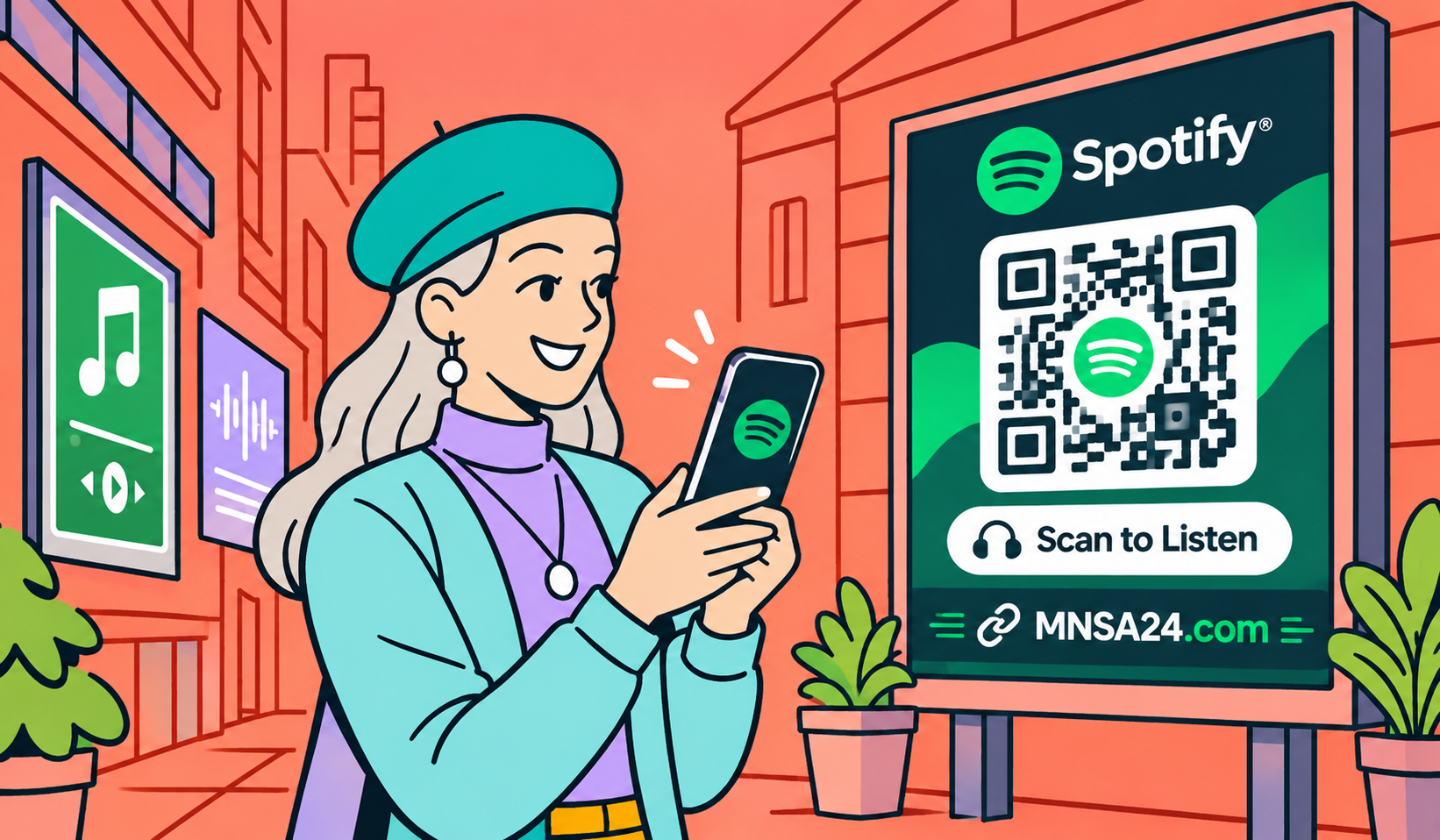
A Spotify QR Code is a standard Quick Response (QR) Code that contains a link to Spotify content. When someone scans it using a compatible smartphone camera, the link opens the corresponding Spotify destination.
Depending on the URL used, a Spotify QR Code can direct people to:
- Individual songs and music tracks.
- Spotify playlists.
- Full albums and EPs.
- Artist profiles.
- Podcasts and individual episodes.
- Other publicly accessible Spotify content.
Spotify QR Codes are useful because they connect physical and digital experiences. For example, an artist can print a QR Code on a concert poster, allowing fans to scan it and listen to a new release immediately.
Businesses can also use them in restaurants, retail stores, gyms, events, and promotional campaigns to share playlists with customers.
Spotify Codes vs. Spotify QR Codes: What's the Difference?
Although the names sound similar, Spotify Codes and standard Spotify QR Codes are two different technologies.
Spotify Codes are Spotify's native visual codes. They feature a distinctive design with Spotify branding and a series of soundwave-like lines. Users generally need to scan them through the Spotify app.
Spotify QR Codes are conventional QR Codes generated using a third-party QR Code generator. They contain a Spotify URL and can usually be scanned using a smartphone's built-in camera without opening Spotify first.
Here is how they compare:
| Feature | Spotify Code | Standard Spotify QR Code |
|---|---|---|
| Created with | Spotify app or official Spotify Code generator | Third-party QR generator |
| Scanning method | Spotify app scanner | Phone camera or QR scanner |
| Spotify account required to scan | Spotify app required | No Spotify account required to scan |
| Customization | Limited | Depends on the QR generator |
| Branding | Spotify-style design | Custom colors and branding |
| Destination | Spotify content | Any supported URL |
| Analytics | No built-in campaign scan analytics | Depends on the QR provider |
| Best use | Sharing music within Spotify | Marketing, printing, events, and promotions |
Which one should you choose?
Choose Spotify Codes if you want a quick way to share music with people who already use Spotify.
Choose a standard Spotify QR Code if you want to reach a wider audience, customize the design, or use the code in printed marketing materials.
Why Use a Spotify QR Code?
Spotify QR Codes offer several practical advantages for individuals, creators, and businesses.
1. Make Music Easier to Share
A QR Code eliminates the need to search manually for a particular song or playlist. People simply scan the code and follow the link.
2. Promote Music and New Releases
Independent musicians, record labels, and content creators can include QR Codes on promotional materials to direct listeners to their latest releases.
3. Improve Customer Experiences
Restaurants, cafes, hotels, and gyms can place QR Codes on tables, menus, or reception desks to let customers access curated playlists.
4. Connect Offline and Online Marketing
Printed materials can become interactive marketing tools. Posters, business cards, event tickets, packaging, and merchandise can all include Spotify QR Codes.
5. Simplify Playlist Promotion
Instead of repeatedly sharing long Spotify URLs, you can use a shortened link or QR Code to make music destinations easier to distribute.
How to Create a Spotify QR Code
Creating a Spotify QR Code is straightforward. You only need a Spotify link and a QR Code generator.
Follow these steps:
Step 1: Choose Your Spotify Content
Open Spotify and select the song, album, playlist, artist profile, or podcast you want to share.
Make sure you have selected the correct destination before creating your code.
Step 2: Copy the Spotify Share Link
Open the three-dot menu next to the selected content.
Choose Share, then select Copy Link.
You now have the Spotify URL needed to create your QR Code.
Step 3: Shorten Your Spotify Link (Optional)
Spotify URLs can sometimes be long and difficult to include in printed materials or promotional messages.
Using a URL shortener such as MNSA24 can make the link more compact and easier to share.
To do this:
- Visit MNSA24.com.
- Paste your Spotify URL into the URL shortener.
- Create your shortened link.
- Copy the generated URL.
- Use the shortened destination when creating your QR Code, if supported by your chosen QR generator.
You can also share the shortened URL directly through social media, messaging applications, websites, and email.
Step 4: Generate Your Spotify QR Code
Choose a QR Code generator that supports standard website URLs.
Paste your Spotify URL or shortened link into the generator.
Select the QR Code format and customize its appearance if the tool supports customization.
Step 5: Download and Test Your QR Code
Download the generated QR Code in a suitable format.
For printed materials, use a high-resolution format such as SVG or a sufficiently large PNG.
Before publishing, scan the code using different smartphones to confirm that it opens the correct Spotify destination.
Important: If you use a shortened URL, make sure the redirect works correctly before printing thousands of copies.
How to Create a Spotify Code Using the Spotify App
If you prefer Spotify's original code design, you can create a native Spotify Code directly from the application.
On iPhone and Android
- Open the Spotify app.
- Find the song, album, playlist, or artist you want to share.
- Tap the three-dot menu.
- Look for the Show Spotify Code option.
- Display the code on your screen.
- Save or share the image if the available options allow it.
The exact menu options may vary depending on the Spotify app version and content type.
Create a High-Resolution Spotify Code
For higher-quality promotional materials, Spotify provides an official Spotify Codes website.
The general process is:
- Open Spotify on your desktop.
- Navigate to the desired content.
- Copy its Spotify URI if available.
- Visit the official Spotify Codes website.
- Paste the URI into the generator.
- Customize the available design settings.
- Download the resulting image.
Always review Spotify's applicable terms before using native Spotify Codes commercially, particularly on merchandise and products.
How to Scan a Spotify QR Code
Scanning a standard Spotify QR Code is similar to scanning any other QR Code.
On iPhone
- Open the Camera application.
- Point the camera at the Spotify QR Code.
- Wait for the notification or link preview.
- Tap the displayed link.
- Your browser or Spotify app may open the destination.
On Android
- Open your phone's Camera application.
- Point it toward the QR Code.
- Wait for the link notification.
- Tap the link to open the Spotify destination.
Some Android devices may require Google Lens or a built-in QR scanning feature.
Scan a Spotify QR Code From an Image
If someone sends you a Spotify QR Code as an image, you do not necessarily need another phone to scan it.
On iPhone, open the image in Photos and use the available text or link recognition feature.
On Android, open the image using Google Photos or Google Lens and select the detected QR Code link.
How to Scan a Native Spotify Code
Spotify Codes require a different process:
- Open Spotify.
- Tap Search.
- Select the search bar.
- Tap the camera icon if available.
- Choose the scanning option.
- Point the camera at the Spotify Code or select a supported image from your photos.
Remember that a standard camera QR scanner and Spotify's native code scanner do not necessarily recognize the same code formats.
Creative Ways to Use Spotify QR Codes
Spotify QR Codes can be used in many situations beyond sharing songs with friends.
Music Artists and Independent Musicians
Artists can place QR Codes on album covers, posters, promotional cards, merchandise, and concert tickets.
A code can direct listeners to a new single, an entire album, or an official artist profile.
Restaurants and Cafes
Restaurants can create playlists that match their atmosphere and place QR Codes on tables or menus.
Customers can scan the code to listen to the restaurant's music selection.
Concerts and Music Festivals
Event organizers can use QR Codes to share official event playlists, artist profiles, and music collections before or after performances.
Marketing Campaigns
Brands can create music-themed campaigns using Spotify playlists that reflect their identity.
For example, a fitness brand might share workout playlists, while a travel company could create playlists inspired by different destinations.
Educational Activities
Teachers and educators can use QR Codes to share educational podcasts, language-learning playlists, and audio resources with students.
Gifts and Personal Projects
A personalized Spotify playlist QR Code can be added to greeting cards, photo albums, gifts, and special occasion invitations.
It provides a simple way to connect a physical gift with a digital music experience.
Best Practices for Designing Spotify QR Codes
A QR Code is only useful if people can scan it successfully.
Follow these recommendations when designing your code:
- Maintain sufficient contrast: Use dark QR patterns against a light background.
- Avoid excessive customization: Decorative elements should not interfere with scanning.
- Choose the correct size: Make the QR Code large enough for its intended viewing distance.
- Keep the quiet zone: Leave clear space around the code.
- Use a clear call to action: Add text such as "Scan to Listen" or "Discover the Playlist."
- Test before printing: Scan the final design using different smartphone devices.
- Use high-resolution files: Avoid blurry or distorted images.
- Check the destination: Confirm that the Spotify URL works and points to the correct content.
If you use a dynamic QR Code service, check whether it allows you to change the destination after publication and whether scan analytics are included in your plan.
How to Share Spotify Links More Effectively With MNSA24
QR Codes are useful for visual and printed promotions, but shortened links are equally important when sharing music online.
A URL shortener makes long Spotify links easier to distribute through social media posts, messaging applications, websites, and email campaigns.
With MNSA24, you can create shorter links for your Spotify destinations and simplify the way you share them.
Here are some practical applications:
- Share shortened Spotify playlist links on Facebook and other social platforms.
- Include compact music links in promotional messages.
- Make Spotify destinations easier to include in website content.
- Organize links for different songs, albums, and playlists.
- Use shortened URLs when creating QR Codes through compatible third-party tools.
The important point is to choose the right tool for each task. A URL shortener simplifies sharing, while a QR Code generator creates scannable images. Some platforms combine both capabilities, but their features and tracking options should be checked individually.
Visit MNSA24.com to create shorter, more convenient links for your online sharing needs.
Final Thoughts
Spotify QR Codes provide a convenient way to connect people with music, playlists, podcasts, and artist profiles. They are especially useful for artists, businesses, event organizers, and anyone who wants to make music easier to discover.
The main difference is that native Spotify Codes are designed for sharing within the Spotify ecosystem, while standard QR Codes offer broader camera compatibility and more flexibility through third-party tools.
For online sharing, combining Spotify URLs with a URL shortener such as MNSA24 can make links easier to distribute across different platforms.
Whether you are promoting a new release, building a branded playlist, or sharing your favorite music, the right combination of shortened links and QR Codes can make the experience simpler and more accessible.
Frequently Asked Questions
Are Spotify Codes the same as QR Codes?
No. Spotify Codes are Spotify's native scannable tags, while Spotify QR Codes are standard QR Codes containing Spotify URLs. The two formats use different scanning methods.
How do I create a QR Code for a Spotify song?
Open Spotify, select the song, tap the three-dot menu, and copy its share link. Paste that URL into a standard QR Code generator, create the code, and test it before sharing.
Can I create a Spotify QR Code for a playlist?
Yes. Copy the playlist's Spotify share URL and use it as the destination in a QR Code generator. Anyone who scans the code can access the playlist, subject to its availability and access settings.
Can I scan a Spotify QR Code without the Spotify app?
Yes. A standard Spotify QR Code can be scanned using a compatible smartphone camera without having the Spotify app installed. The destination may open in a web browser.
Can I create a Spotify QR Code for free?
Yes. Some third-party QR Code generators offer free static QR Codes. However, advanced features such as editable destinations, branding, and scan analytics may require a paid plan.
Can I shorten Spotify links?
Yes. You can use a URL shortener such as MNSA24.com to create shorter versions of Spotify URLs, making them easier to share in messages, social media posts, and websites.
Can I customize a Spotify QR Code?
Yes. Many QR Code generators allow you to customize colors, patterns, frames, and logos. However, customization should not reduce readability or scanning reliability.
Can I track how many people scan my Spotify QR Code?
This depends on the QR Code provider. Some services offer scan analytics, including scan counts, dates, locations, and device information. Standard Spotify Codes do not provide built-in campaign scan analytics.
Why is my Spotify QR Code not working?
Common reasons include poor image quality, insufficient contrast, an incorrect URL, damaged QR Code patterns, or an unsuitable printing size. Test the code with different devices and verify the destination URL.
Is it better to use a Spotify Code or a Spotify QR Code?
Use Spotify Codes for quick sharing within Spotify. Choose a standard Spotify QR Code when you need broader camera compatibility, custom branding, or integration into marketing materials.